How to animate an image online with AI?
Upload your image
Start with a clear photo as your base. You can also add a second image if you want to guide the ending look.
Write a short prompt
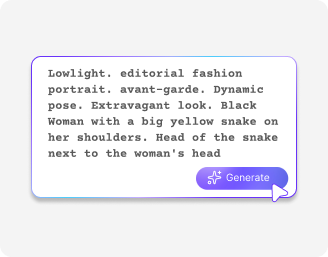
Describe the motion or mood you want in plain words. Keep it simple and specific
Choose format & export settings
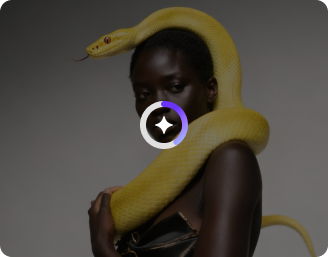
Pick your format, set the clip length, choose a ratio, and turn audio on or off. Click Generate, preview & save in HD
Why use Pixelbin’s AI image animator?
Custom scene generation
Adjust or replace the scene around your subject so the final clip feels cleaner, more polished, and better suited to the story you want to tell.
Color and mood adjustment
Shift the look of the image with softer light, or stronger contrast so the animation matches the mood you had in mind.
Format and timing control
Choose the layout and duration before you generate so the clip fits where you plan to use it, whether that is social, preview, or brand content.
Audio toggle option
Switch audio on or off depending on the kind of output you want, which makes it easier to keep the final clip matched to your use case.
Precise motion controls
Guide the camera (pans, zooms, or orbits) and object movement using descriptive text prompts
Multi-angle visuals
Generate multiple camera angles or orbit shots from a single uploaded image and get exports in HD quality.
Create scroll-stopping image to video AI instantly
Add smooth animation effects to images for social media, marketing campaigns, product showcases, or personal creative projects without advanced editing tools.
Simple prompt control
Use a short sentence to guide the motion, mood, or camera movement, so the final clip feels close to your idea.
Quick output
Generate short videos with the AI image animator; useful when you need content fast for social posts or a campaign draft.
Flexible image setup
Work with a start image, an end image, or both, depending on how much control you want over the animation.
Browser-friendly workflow
Access the free image animator AI online across all browsers, so you can create and preview clips without installing extra tools.
AI tools by Pixelbin
Key highlights of Pixelbin’s AI image animator
Benefits of the AI animator from image
- Fast creation: Turn a still image into a short clip in just a few steps, which saves time when you need content quickly.
- Cheaper product videos: You do not need to hire a videographer. Upload one product photo to make it rotate or move, helping you sell more online.
- Easy setup: Upload your image, add a prompt, and choose a few settings without learning a complicated workflow.
- Best for short-format content: Create clips with the free image-to-video AI tool that fit social posts, reels, and story-style content.
- Useful for exploring creativity: Make product previews, mood shots, concept clips, or simple animated posts from one image.
- No heavy editing work: You do not need timelines, layers, or advanced software to get started with our AI animate image online tool.
Use cases for image to video AI software
- Social media posts: Create a moving clip from any image for Instagram, TikTok, or short-form content when you want something more eye-catching than a static image.
- Campaign previews: Use the image animator AI to create quick visual drafts for ads, banners, or launch ideas before committing to a bigger edit.
- Product and brand clips: Add subtle motion to product shots, lifestyle photos, or brand visuals so they feel more alive and easier to notice.
- Mood and concept testing: Test a visual idea or creative direction before building a longer video, which helps teams move faster.
- Portfolio and showcase content: Convert still visuals into short animated pieces for a portfolio, presentation, or personal site.
- Email and newsletter visuals: Animate your key image so your email feels more engaging before people even click through. A small animated preview can make the message stand out in a crowded inbox.
- Presentations and pitch decks: Convert a static slide visual into a short clip for investor decks, client presentations, or internal reviews. It helps the idea feel clearer and more memorable without overcomplicating the slide.
How to get better results using Pixelbin’s AI image animator?
- Start with a clear image that has a strong subject and enough detail.
- Keep your prompt short and focused on one action or one mood.
- Use the end image only when you want a more controlled finish.
- Pick the format that suits where you will post the clip.
- If the first result feels close but not quite right, change one part of the prompt and try again.
FAQs
Edit images in seconds, not hours
Get pixel-perfect results just with your words
Start editing with AI